
How to Use Trailhead Banner
Find Your Trailhead Username
- Log in to Trailhead.
- Go to your Trailhead profile.
- Copy the username, it is the string displayed after the `salesforce.com/trailblazer/`.
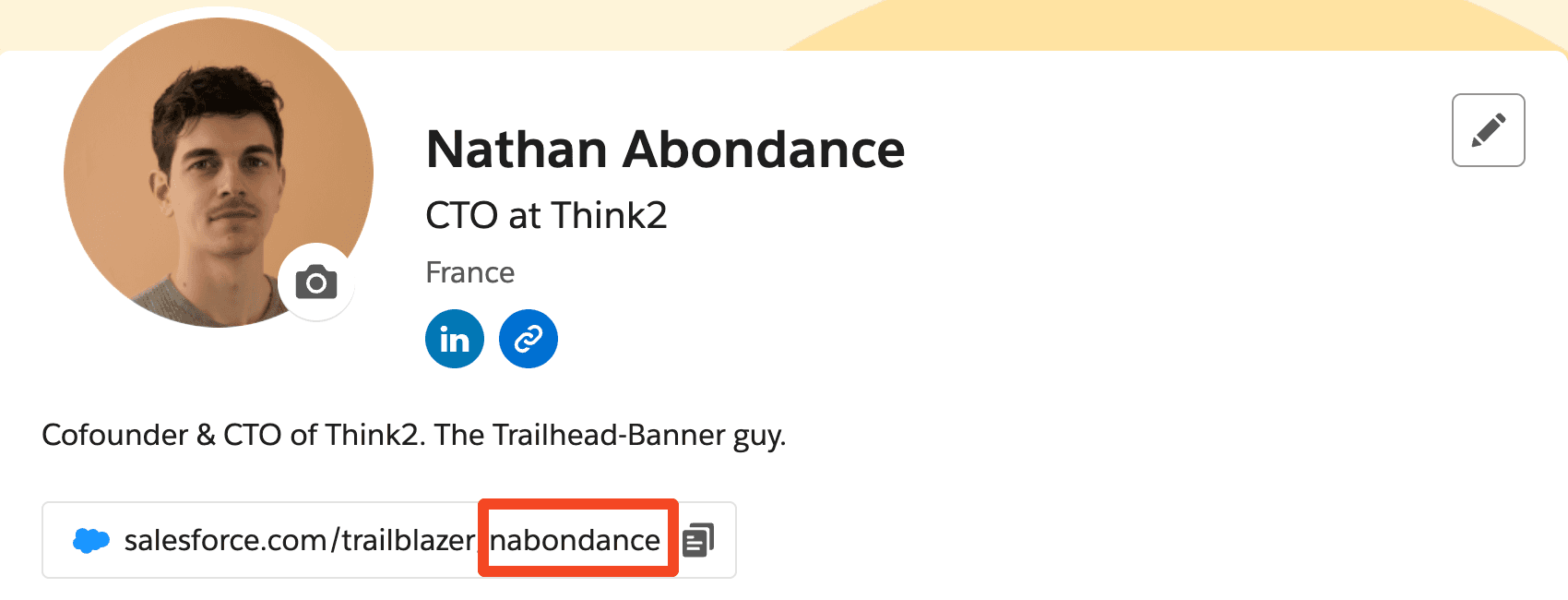
How to Make Your Trailhead Profile Public
- Log in to Trailhead.
- Go to your Trailhead settings.
- Under "Your Profile Privacy", select "Public".
How to Make Your Trailhead Certifications Public
- Log in to Trailhead.
- Go to your Trailhead Academy profile.
- Under "Certification Privacy", select "Make my certifications public to all".
How to Use a Custom Background
- Click on "More Options" in the banner generator form.
- Select "Custom URL" or "Upload Image" from the "Background Kind" dropdown.
- Enter the URL of the image or upload an image you want to use as the background.
- Click on "Generate Banner" to see your banner with the custom background.
Common Issues and Solutions
- If you encounter an error, try refreshing the page and trying again.
- Ensure your Trailhead username is correct and not an email address.
- If the problem persists, consider writing an issue on the GitHub repository.
Frequently Asked Questions
What is Trailhead Banner?
Trailhead Banner is a free, open-source tool that turns a public Salesforce Trailhead profile into a LinkedIn banner image. You enter your Trailhead username and it draws your rank, badge counts, certifications and superbadges onto a ready-to-upload banner. View the source on GitHub
What size is the generated LinkedIn banner?
Banners are 1584 × 396 pixels PNG images, the background photo size LinkedIn recommends for personal profiles.
Which Trailhead data appears on the banner?
Your Trailblazer rank logo, counters (badges, superbadges and certifications by default; trails, points, stamps, Trailblazer Community activity and more are optional), the logos of your Salesforce and Accredited Professional certifications, your superbadges, your Agentblazer rank, an MVP ribbon for Salesforce MVPs, and your highest verified sfdx-hardis training badge.
Why are my certifications missing from the banner?
Certifications only appear when they are public. In your Trailhead Academy profile, set Certification Privacy to "Make my certifications public to all", then generate the banner again. Make your certifications public
Why does Trailhead Banner say my profile is private?
Trailhead Banner can only read public profiles. In your Trailhead settings, set Your Profile Privacy to Public. Also check that you entered your username (the part after salesforce.com/trailblazer/), not your email address. Make your profile public
Can I use my own background image?
Yes. Pick one of the built-in backgrounds in the library, use a solid color, paste an image URL, or upload and crop your own image. Browse the background library
How do I add the banner to my LinkedIn profile?
Download the generated PNG, open your LinkedIn profile, click the pencil icon on the background photo, choose Change photo, upload the banner and save. See the steps above
Is Trailhead Banner free? Do I need an account?
It is completely free and needs no account or login: only your public Trailhead username. Trailhead Banner is an independent community project, not an official Salesforce product.
Need Further Assistance?
- If the issue persists, please create an issue on our GitHub repository: Create an Issue